Showing posts with label turn off. Show all posts

Sunday, June 14, 2009

Add or Remove File Association in Windows Vista

Back in the good old days with Windows XP, things were a little easier with performing simple tasks. One that comes to mind is file types. With XP you can easily associate and unassociate file types to a program or application, from the Control Panel or by selecting: Tools \ Folder Options on the menu of a folder.

With Vista, for some unknown reason, you can only associate file types, but you can not unassociate (delete) a file type completely. The only option allowed is to associate the file to another program or application. Until now…

First, let's look at two ways to find where File Type Associations lives in Vista. The easiest way is from the Start Menu, by clicking on Start \ Default Programs.

filetypesvista1.png

Then click on Associate a file type or protocol with a program.

filetypesvista2.png

The second way is from the Control Panel by clicking on Start \ Control Panel \ Programs then clicking on Make a file type always open in a specific program (under Default Programs).

filetypesvista3.png

Once you have accessed the window for file type association, you can easily associate (add) or change (modify) an existing file type, by highlighting a file type, then clicking on the Change Program… button.

filetypesvista4.png

NOTE: You will need to click the small down arrow  to see the list of Other Programs.

To remove (delete) a file type association, you can use a great utility found on winhelponline.com to unassociate file types.

Just download, unzipp and click on Unassoc.exe. No install is required.

filetypesvista6.png

To use, just find the file type you want to delete and click on the Remove file association button. The file type association will be deleted from the registry. Vista will then treat it as an unknown file type.

Now, the only functionality missing with File types in Vista, compared to XP, is the capability to change icons and create a new file type. If you come across how to do this, let us know!

Saturday, June 13, 2009

Remove Optional Windows XP Components

Windows XP has plenty of options to get rid of the extra bloat on your computer. One of the best ways to do it is to get rid of the Windows components you don't use.

1. Click start –> Set Programs and Access Defaults.

image

2. Click Add/Remove Windows Components.

image

This “Please Wait…” dialog will open. This windows may stay open for up to 5 minutes, so be patient.

3. The below screenshot is self explanatory. Uncheck the components you wish to uninstall.

image


4. Click Next and your done!

image

Remove Optional Vista Components

In the quest to get rid of the unnecessary bloat it your computer, Windows Vista has less options than previous versions of Windows, but you can still get rid of some of the components.

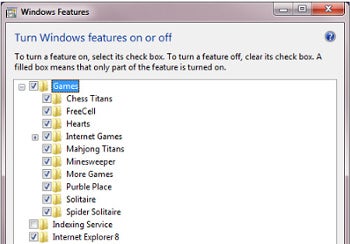
Open up Control Panel and go to the Programs and Features section. Find the link for "Turn Windows features on or off" (or you could just search for it)

image

This dialog is quite self-explanatory… uncheck the things you don't want, and hit the OK button. Depending on the version of Vista you are running you might not see everything in the list.

image

Just to get you started, here's a few tips on what an average user might want to enable or disable. The rules will be different for everybody, depending on your applications and needs, so don't take these as absolute.

ActiveX Installer Service
No
Do you really want anything to do with ActiveX?

Games
Why Not
Your productivity can only increase with Spider Solitaire on your computer.

Indexing Service
No
This is the old indexing service that is no longer needed in Vista.

Internet Information Service
No
Used for hosting websites on your computer.

Microsoft .NET Framework 3.0
No
Used for the new .NET 3.0 components, but only really needed for programmers.

Microsoft Message Queue (MSMQ) Server
No
Used by programmers as a way to reliably queue messages.

Print Services
No
You only need this if you use internet printers and like to kill trees. Our rainforests are depending on you disabling this service.

Remote Differential Compression
Maybe
This is likely required for utilities that use the network to download files. If it is enabled, don't mess with it.

Removable Storage Management
No
The only reason you'd need this is if you are restoring from old NTBACKUP files.

RIP Listener
No
You won't need this, it's a routing protocol.

Services for NFS
No
This can be used to map a drive to a linux NFS server. Unlikely you'd need it since Samba works so well.

SNMP Feature
No
This is used for management systems in workplace networks. You don't need it.

Subsystem for UNIX-based Applications
No
This is used for compatibility with certain applications based on UNIX… you don't need it.

Tablet PC Optional Components
Maybe
If you have a Tablet PC, you should enable this. If you don't, you may still want to because this includes the Snipping Tool.

Telnet Client
AVOID
You should never use telnet. Ever.

Telnet Server
AVOID
You should never use telnet. Ever.

TFTP Client
AVOID
TFTP was used by many of the early internet worms… there's a reason it's disabled by default.

Windows DFS Replication Service
No
This is only really used in work environments. Don't bother with this if you are a home user.

Windows Fax and Scan
No
Why anybody still faxes anything is beyond me.

Windows Meeting Space
No
If you don't use Windows Meeting Space or the "People Near Me" feature, don't bother with this.

Windows PowerShell
No
PowerShell is a more advanced command line geared towards programmers and system administrators.

Windows Process Activation Service
Probably
This is likely required to support some .NET applications, so I wouldn't change whatever it's currently set to.

Windows Ultimate Extras
Maybe
If you like the extras, then enable them. (Ultimate Only)

Friday, June 5, 2009

Windows Update Quietly Installs Firefox Extension

image A routine update for millions of Windows based PC’s has quietly installed a .Net Framework Ad-On for Firefox.

Earlier this year, Microsoft shipped a bundle of updates known as a "service pack" for a programming platform called the Microsoft .NET Framework, which Microsoft and plenty of third-party developers use to run a variety of interactive programs on Windows.

The .Net update, like other updates, where pushed out via. Windows Update. A number of readers had never heard of this platform before Windows Update started offering the service pack for it, and many of you wanted to know whether it was okay to go ahead and install this thing.

dotnetext.JPG

The .Net update in the Firefox Add-Ons window has a greyed out uninstall button, therefore you may not uninstall it. The reason this is such major news is because this makes Firefox less secure, by allowing websites to install software without permission. Removal instructions are here.

Wednesday, June 3, 2009

How to Block Tracking Cookies

Some people seem really concerned about cookies. The worst offenders, they argue, are so-called “tracking cookies,” which supposedly allow companies like Doubleclick to track your movements on the Internet.

If you think this is a big deal, fine. You don’t need anti-spyware software to get rid of these cookies. Instead, take the following two steps:

  1. Delete all currently saved cookies from your computer. In Internet Explorer, click Tools, Internet Options and then click the Delete Cookies button on the General tab. In Firefox 1.0, click Tools, Options. Click the Privacy icon in the sidebar and then click the Clear button to the right of the Cookies heading.
  2. Specify that you want to block all third-party cookies. In Internet Explorer, click Tools, Internet Options. On the Privacy tab, click Advanced. Click to select the Override automatic cookie handling check box, and then click Block under the Third-party Cookies heading. In Firefox 1.0, click Tools, Options. Click the Privacy icon in the sidebar and then click the plus sign to the left of the Cookies heading to expand your list of options. Click to select both options: Allow sites to set cookies and for the originating web site only.

There. You’re done. You’re completely protected from “tracking cookies.”

But (I can hear you asking) what about first-party cookies? Well, if you’re visiting a Web site, they already have your IP address, and they have a record of every page you visit on their site and everything you type into a form. If you’re really that concerned about a Web site, you might want to avoid visiting it. But if you’re really worried about first-party cookies, open Internet Explorer’s Advanced Privacy Settings page and then click the Prompt option under the First-party Cookies heading. With Firefox, you can use an extension or set the ask me every time option. After you save these settings, you’re in complete control.

Here’s what your IE options should look like:

Ie_cookies

And here’s what Firefox options look like:

Ff_cookies

Now can we agree that there’s no need for an anti-spyware program to do something so simple?

When a Cookie is blocked you’ll get this alert:

image

Tuesday, May 26, 2009

Windows 7 Shutdowns Begin in July not June

A e-mail sent this weekend alerted Windows 7 Beta testers that Windows 7 will shut down July 1st, not June 1st as stated before.

The e-mail warned users that the beta version of Windows 7 would expire on August 1 and suggested that users upgrade to "non-expired" copies, like Windows 7 RC or Windows Vista. Bi-hourly shutdowns of the beta version, however, will begin on July 1, not June 1.


"The Windows 7 Beta does expire on August 1, 2009; unfortunately the date for when bi-hourly shutdowns will begin for the Windows 7 Beta was incorrect. "Bi-hourly shutdowns for the Windows 7 Beta will begin July 1, 2009." Microsoft Spokesman- Brandon LeBlanc.


"We apologize for the confusion and inconvenience this may have caused," he said.

Sunday, May 24, 2009

Customise Windows 7 Action Center

The Windows 7 Action Center is a new version of the Windows Vista Security Center. It monitors certain Windows components and alerts the user when a setting is set in such a way that it can harm you or your computer. The Action Center will also tell you things about the security of Windows.

These alerts might be helpful to the average person using Windows 7 but it may just be an annoyance to more experienced users who know what they are doing.

The good news is that these annoying notifications can be modified by accessing the Action Center control panel from the Start Menu.

windows 7 action center

action center

Experienced users can disable all Action Center notifications so that they will not show up in the taskbar anymore. Another option to completely disable Action Center in Windows 7 is to access the System Icons module in the Control Panel to change the Action Center entry from on to off.

Sunday, March 8, 2009

Windows 7 now has an Internet Explorer "Off Switch"


Microsoft confirmed that people will be able to remove Internet Explorer and other once intergrated programs in Windows 7. Internet Explorer 8 will be one of nine new options on the "Windows Features" customizable control panel. Windows Media Player and Windows Search are among the other services being added to the list.
Whether you're a Firefox fan or an IE devotee, I think we can all agree that providing users the option to switch off a built-in Web browser is a positive step. After all, plenty of people do opt to go with a third-party alternative -- we'll look at just how many, in a moment -- and for those folks, there's no reason to have a default option clogging up valuable system resources.
But why the sudden switch to the on-off switch configuration? Microsoft Group Program Manager Jack Mayo describes the change as coming from a desire to let customers use their "own criteria for choice."
"We ... want to strike the right balance for consumers in providing choice and balancing compatibility with applications and providing a consistent Windows experience," Mayo stated in a blog posting Friday.
Of course, there's also that pesky European Union filing that said Microsoft "shield[ed]" Internet Explorer from "head-to-head competition" by building the browser into Windows. Documents indicated the EU was looking at forcing Microsoft to let users disable at least portions of IE if they wanted to use another browser instead.
Microsoft has declined to comment on whether there's any relation.
Whether it comes from an EU mandate or a newfound appreciation for options, the concept of choice over IE's presence couldn't come at a better time. Despite the release of Internet Explorer 8's first release candidate in January, Microsoft has continued its long-running downward slide within the browser market. As of February 2009, IE commands 67.44 percent of overall browser usage, according to data from online analysis firm Hitwise. Firefox, in comparison, holds 21.77 percent of the total, and Safari sits at just over 8 percent.
More noteworthy, however, is the overall trend: From the start of 2008 to the start of 2009, IE lost 10.49 percent of its market share. In the same timespan, Firefox gained 26.8 percent and Safari -- while its totals are significantly smaller -- saw a growth of 42.44 percent. If you use a simple mathematical analysis to project those rates of change into the future (as I did last month), you'll see that Microsoft's stronghold could slip away sooner rather than later, assuming the current trends continue. Regardless of how low it goes, though, one thing is certain: Internet Explorer is no longer the near-universal preference it once was.
So Microsoft, thanks for finally acknowledging that users are making their own decisions and letting go of the idea that keeping your browser present will keep its position stable. The move has been a long time coming, and -- regardless of where your motivation originated -- the adjustment will be welcomed with open arms.