Showing posts with label Windows Xp. Show all posts

Monday, October 26, 2009

Free Anti-Virus Software For Windows 7 Vista and XP

There are plenty of paid antivirus software like Norton out there for Windows, but what if you want a free anti-virus. The good news is that there is plenty of free Anti Virus software that are out there.

Below I’ve listed the best of the free security software that is compatible with Windows 7, Vista and XP.

Microsoft Security Essentials

image

Many reviews say that Microsoft Security Essentials is the best free antivirus out there. MSE is very lightweight and effective, but it does have some issues when detecting false positives. If you want to use MSE you can download here.

Panda Cloud Antivirusimage

Panda Cloud Antivirus is security software in that works in the internet. The software is very lightweight, but it takes a very long tome to scan for infections. You can download here.

COMDO

image

COMDO has been really popular for a long time now. Like the other two options I mentioned it performs well and has OK detection. Click here to download COMDO. COMDO has different options for 32 Bit and 64 Bit PC’s so choose correctly.

AVG 9

image

Of all the software I’ve mentioned AVG is the most popular, but it does not mean its the best. Over the years AVG has went from performing excellently to just being plain awful. If you feel confident enough to try AVG you can download it here.

Avira

image

Avira is a very popular free Antivirus app. It has excellent detection and the scan speeds are the best you’ll find out of all the free apps.

The one big downside is the annoying nag screen asking to upgrade.  If your willing to put up with nag screens you can download it here.

Avast! 4.8

image

Avast is one of the favorite security apps of experts. Its lightweight, fast and it includes a DOS-based boot time scan, which is abnormal for free Antivirus software. You can download Avast here.

Looking at screenshots and deciding which antivirus has the good looks and which is ugly is easy. The hard part is choosing the one with the highest detection. Luckley PC world has orginised a chart with the detection rates. Here they are:

  • Panda: 99.4%
  • Avira: 98.9%
  • Avast: 98.2%
  • MSE: 97.8%
  • AVG: 95.8%
  • Comodo: 74.6%
  • What ever software you choose I recommend you download Both AVG's LinkScanner and Comodo Firewall as add-ons.

    Remember to voice your opinion in the comments section.


    Saturday, October 3, 2009

    Run Windows XP Apps in Windows 7 With Windows XP Mode

    Windows XP Mode allows users to seamlessly run Windows XP applications in the Windows 7 environment. This means that all of your old software that runs on Windows XP will work in Windows 7. Before you get started take a look at the system requirements which I listed below:

    • Operating System(s): Windows XP and Windows 7 Ultimate Professional or Enterprise.
    • Processor: Processor capable of hardware virtualization, with AMD-V™ or Intel® VT turned on in the BIOS.
    • Ram / Memory: At least 2 GB
    • Hard Drive: At least 20 GB for Windows XP

    If you need to check if your processor supports hardware virtualization, refer to your manual, call your computer manufacturer or download SecurAble, to determine if your processor supports XP mode.

    image

    You will now need to download some software.

    You will need to download and install both Windows Virtual PC RC and Windows XP mode RC which you can find here.

    Once you’ve completed the install click Virtual Windows XP in the start menu and choose a username and password. Make sure to remember these credentials, or XP mode wont work.

    Once you’ve done that you should see a window, which will set up Windows XP for use. This can take a while so, go get a cup of coffee read the news paper and wait until it’s complete.  If you receive a message that hardware virtualization is not enabled, reboot your computer and check that the BIOS option is enabled, usually found under the advanced settings page. Call your hardware maker for more information.

    image

    If your computer chooses not to misbehave you should see a window with the regular Windows XP desktop in it.

    image 

    You will now need to install all of your Windows XP applications in the Virtual Windows XP Window. Make sure to select install for all users when you install programs, or XP mode just wont work.

    If you can't install for everybody, you can simply choose "Open All Users" on the start menu, and copy a shortcut to the application into the start menu's programs folder.

    image

    Once you install all of your programs they will be listed in the Windows 7 start menu under the Windows Virtual PC -> Virtual Windows XP Applications folder.


    Depending on what the situation is, when clicking a XP mode application in Windows 7 you’ll be prompted to do different things. No matter what the window says XP mode should work.

    image

    The whole process of setting up XP mode should now be complete. When launching applications in Windows XP mode you’ll find that they look like they did in Windows XP except they are in Windows 7. Enjoy!

    Friday, October 2, 2009

    Upgrading from Windows XP to Windows 7

    You’d think that upgrading from Windows XP to Windows 7 would be easy considering that 60% of PC’s worldwide run it. Unfortunately upgrading form Windows XP to Windows 7 is not as easy as simply pressing the upgrade button, because Microsoft did not add upgrade support. But don't feel sad because your not out of luck, there is a somewhat easy way to upgrade.

    What you'll need are:

    • A USB flash drive or another form of external media
    • A copy of Windows 7
    • A computer running Windows XP (that is Windows 7 compatible)

    For a strange reason some people recommend that you upgrade to Windows Vista first then upgrade to Windows 7. I don’t recommend that method at all because it is a waste of your money. The other method (which Microsoft and I recommend) is a clean install which would obliterate Windows XP and replace it with Windows 7.

    If you've been using Windows XP for the past 8 years chances are you have quite a bit of important data on the computer so its a good idea to back it up.

    To back up or data insert the Windows 7 disk into the computer. If auto run opens click don’t run. Now, browse the DVD for a file named migsetup.exe, which is the Windows Easy Transfer tool. Windows Easy Transfer is designed to help easily move all of your documents and settings to a new operating system. Easy Transfer will not transfer or applications so remember to keep all of the product keys for your paid programs, and the download link for the free ones.

    When the Windows Easy Transfer welcome screen opens you will be prompted to select three options for where you want to save the data to. I personally prefer the external hard drive or USB flash drive option because it’s easiest, but you can click whichever you prefer.

    When the next window pop up just click “This is my old computer”

    The Easy Transfer Tool will scan for user accounts settings and documents. This can take anywhere from a few minutes to a few hours so be patient.

    You will then be prompted to type in a password so you can archive. This is used to prevent people from getting access to your data just incase you loose the USB flash drive. When you’ve installed Windows 7 you will need to type in that password so you can get access to the data.

    Its now time to install Windows 7 so, reinsert the install disk and click install now. Because your upgrading from Windows XP you will need to click the custom install option.

    You can now install Windows 7 as you normally would. You can see screenshots of the process here. Ignore the first 6 setup screenshots.

    Once Windows 7 is installed and running on your machine, attach the external hard disc that you used to take the backup, to the machine, browse over to it and double click on the backup file that you’d created earlier.

    The Windows Easy Transfer utility will then start, ask for the password that you’d set earlier and migrate all your XP settings and data to Windows 7.

    Tuesday, July 7, 2009

    Windows 7 ISO Verifier

    One huge problem people face when downloading a Windows 7 ISO from sketchy services is that they have to verify that it was not tampered with.  In other words, they need to verify that the Windows 7 they asked for is the Windows 7 they got.

    The Windows 7 ISO Verifier has been created by Long Zheng and Sven Groot, and allows users to test to see if the ISO of Windows 7 they have has not been tampered with. ISO images can simply be dropped onto the exe after download.

    image

    The program calculates the hash of the local ISO and compare it with an online database, which is constantly updated. The process is very fast. It can obviously happen that a hash is not listed in the online database either because the release is to new, human error or because it has been tampered with (say another language was added).

    Monday, July 6, 2009

    Critical Security Hole Found in Windows XP and Server 2003

    image

    Microsoft is warning users of Windows XP and Windows Server 2003 of a security hole in Internet Explorer that allows hackers to remotely install malicious software on computers.

    The hole, which is caused by Internet Explorer and ActiveX, has been used for about a week to install viruses on users who click certain links in spam emails. Microsoft’s solution is available here is used to disable the video software. Microsoft is working hard to fix the problem.

    Saturday, June 27, 2009

    Is Windows Installing Updates Without Your Permission?

    Several reports say that Windows XP and Windows Vista are installing updates, at system shutdown, when the user configured the computer to ask to install updates first.

    This Windows Secrets article explains it all. The problem comes up when Windows is configured to use Automatic Updates either to (Vista terminology here) "Download updates but let me choose whether to install them" or "Check for updates but let me choose whether to download and install them".

    image

    Now every tech know-it-all you talk to will tell you that you should have automatic updates set to “Install updates automatically”. There have been times when Automatic Updates shut down internet access to Zone Alarm users, but that is rear and the risks outweigh the benefits. People in the aggregate are better off installing updates automatically.

    Scott Spanbauer in Windows Secrets explains what might have happened. The June 9th update was a rather large update. which addressed 10 updates and 31 vulnerabilities. Microsoft Knowledge Base explains how some problems can occur when a traffic is heavy on the update server. 

    Spanbauer puts forward one possible avenue for users who really want to avoid this problem:

    If you consider it important to research patches before they're installed, one possible workaround involves selecting AU's option 2 or 3. Then, run Microsoft Update (a superset of Windows Update, both of which require IE) and specify every patch to be installed or not installed -- every time you plan to shut down or reboot. Running Microsoft's updater should eliminate any queued downloads that might install unexpectedly.

    This doesn't seem quite right to me in a few ways. First, neither Windows nor Microsoft Update on Vista use IE, but they do on XP. Second, I have at least one system where running Microsoft Update does not eliminate queued downloads, and in fact Microsoft Update fails in that case; I have to let Automatic Updates proceed. Third, this sounds like a major pain.

    Friday, June 26, 2009

    The Blue Screen of Death Over the Years

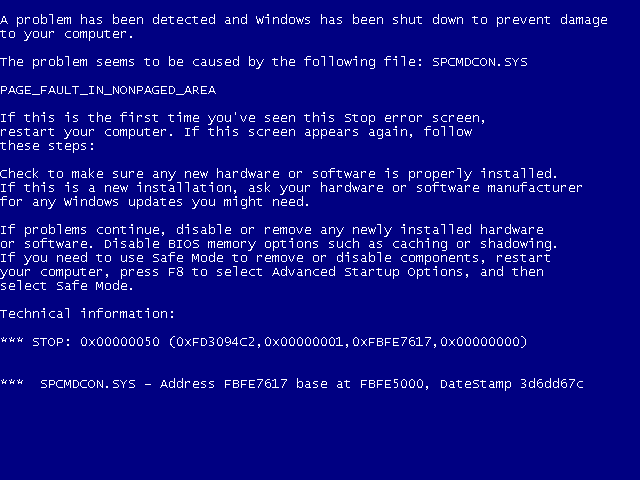
    The Blue Screen of Death (BSOD) is an error message that appears when Windows experiences a fatal error. The error message can show up at any time, but it is still quite rear. I’ve compiled the BSOD of all the versions of the Windows, and they are shown below.

    Windows XP, Vista and 7

    File:Windows XP BSOD.png

    The Windows XP Vista and 7 BSOD

    Vista’s Unique Blue Screen of Death

    image

    A unique Blue Screen of Death with only one line of error code as seen in Windows Vista, which is an ACPI-related error.

    Windows NT

    image

    In Windows NT-based operating systems, the blue screen of death (displayed in 80x50 text mode as opposed to 9x/Me's 80x25) occurs when the kernel or a driver running in kernel mode encounters an error from which it cannot recover. This is usually caused by an illegal operation being performed. The only safe action the operating system can take in this situation is to restart the computer. As a result, data may be lost, as users are not given an opportunity to save data that has not yet been saved to the hard drive.

    The text on the error screen contains the code of the error along with four error-dependent values in parentheses that are there to help software engineers fix the problem that occurred. Depending on the error code, it may display the address where the problem occurred, along with the driver which is loaded at that address. Under Windows NT and 2000, the second and third sections of the screen may contain information on all loaded drivers and a stack dump, respectively. The driver information is in three columns; the first lists the base address of the driver, the second lists the driver's creation date (as a Unix timestamp), and the third lists the name of the driver.[1]


    Windows 2000

    File:029-bsod Windows 2000.jpg

    BSOD from Windows 2000. The red portion highlights the error that crashed the computer.

    Windows 98/95/ME

    image

    Perhaps the most famous instance of a Windows 9x BSoD occurred during a presentation of a Windows 98 beta by Bill Gates at COMDEX on April 20, 1998. The demo PC crashed with a BSoD when his assistant (Chris Capossela, who is still working for Microsoft as Corporate VP in the Information Working business unit) connected a scanner to the PC, trying to demonstrate Windows 98's support for Plug and Play devices. This event brought thunderous applause from the crowd and Gates replied after a nervous pause: "That must be why we're not shipping Windows 98 yet."[3]


    Windows CE

    image

    The simplest version of the blue screen occurs in Windows CE except the versions for Pocket PC, which appears similar to the ones found in Windows 9x/Me.


    Windows 1.0

    image

    The very first Blue Screen of Death happens in Windows 1.0 if a computer fails to boot up properly, it will show random letters and symbols [4] If Windows 1.0 encounters any (MS-DOS related) critical system errors, it will instead show a Black Screen of Death.

    Windows 2.0's BSOD is the very same thing.

    Thursday, June 18, 2009

    More Morro Screenshots Leaked

    A Windows enthusiast blog on Tuesday posted what it says are leaked screenshots of Microsoft's upcoming free security software, code-named "Morro," which is due for public beta release soon. Today another set of screenshots were leaked.

    In November, Microsoft announced that they would no longer be selling or supporting it’s failed anti-virus software, Windows Live OneCare.

    Microsoft says that Morro will be available in the second half of 2009. OneCare will be continued to be sold until June 30 2009.

    Morro will be compatible with Windows XP, Vista and the upcoming Windows 7.

    When OneCare launched 3 years ago it managed to make a dent in the security industry due to lower than normal prices.

    microsoft_security_essentials

    microsoft_security_essentials8

    microsoft_security_essentials7

    microsoft_security_essentials6

    microsoft_security_essentials5

    microsoft_security_essentials4

    microsoft_security_essentials3

    microsoft_security_essentials2

    microsoft_security_essentials12

    microsoft_security_essentials11

    microsoft_security_essentials10

    microsoft_security_essentials9

    Tuesday, June 16, 2009

    Morro Screenshots Leaked; Will it be Cloud Based?

    A Windows enthusiast blog on Tuesday posted what it says are leaked screenshots of Microsoft's upcoming free security software, code-named "Morro," which is due for public beta release soon.

    Neowin.net has three screenshots apparently obtained by a secret source. Morro is said to be tested internally by Microsoft

    ZDnet is reporting that Morro will be cloud based.

    "Instead of scanning every file or network packet as they arrive into the computer from the Web or an external device, it creates a virtual tunnel between your incoming Internet pipe at the back of your computer to a Morro data center, which scans every byte and packet for malware," writes ZDnets’s Zack Whittaker

    image

    In November, Microsoft announced that they would no longer be selling or supporting it’s failed anti-virus software, Windows Live OneCare.

    Microsoft says that Morro will be available in the second half of 2009. OneCare will be continued to be sold until June 30 2009.

    Morro will be compatible with Windows XP, Vista and the upcoming Windows 7.

    When OneCare launched 3 years ago it managed to make a dent in the security industry due to lower than normal prices.

    "With a number of free products already available, McAfee has experienced more than three years of global growth. On a level playing field, we are confident in our ability to compete with anyone who might enter the marketplace."McAfee said.


    "Microsoft isn't going to change the business dynamic. Freeware is really about customer acquisition," Dave Cole, Symantec's senior director product management. "Norton offers trialware as a means to secure customers and even freeware vendors such as AVG, Avira, and Avast recommend upgrading to their payware solution for more complete protection. The reality is that shareware and freeware vendors have been in the market for 20-plus years. The freeware space is crowded and Microsoft is just joining the fray." Symantec said


    And this from Justin Priestley, senior vice president of consumer sales at Kaspersky Lab Americas: "Right now, Kaspersky Lab offers free access to our antivirus detection technology through our Web site, allowing consumers to scan their systems or suspicious files...and for the foreseeable future, that will be the extent of our no-charge offerings."

    Here are the leaked screenshots obtained by neowin from an anonymous tipster. Morro is currently in testing and is subject to UI changes.

    image

    image

    image

    Monday, June 15, 2009

    Windows 7 to Have a Low Key Launch

    Stuff.co.nz has been talking to Microsoft employees in New Zealand and they were told that Windows 7 would not have a big launch event, similar to the launches of XP and Vista.

    When Windows 7 is launched on October 22, a Microsoft spokesman said:

    “We will be doing something interesting and exciting. It’s hard to say what direction we will go in right now, but it will be appropriate to the times and not anything terribly extravagant.”

    The news is a shame, especially because Windows 7 is most likely one of Microsoft’s best products in a long time. There has been lots of buzz around Windows 7 and most feedback has been positive.

    Sunday, June 14, 2009

    Add or Remove File Association in Windows Vista

    Back in the good old days with Windows XP, things were a little easier with performing simple tasks. One that comes to mind is file types. With XP you can easily associate and unassociate file types to a program or application, from the Control Panel or by selecting: Tools \ Folder Options on the menu of a folder.

    With Vista, for some unknown reason, you can only associate file types, but you can not unassociate (delete) a file type completely. The only option allowed is to associate the file to another program or application. Until now…

    First, let's look at two ways to find where File Type Associations lives in Vista. The easiest way is from the Start Menu, by clicking on Start \ Default Programs.

    filetypesvista1.png

    Then click on Associate a file type or protocol with a program.

    filetypesvista2.png

    The second way is from the Control Panel by clicking on Start \ Control Panel \ Programs then clicking on Make a file type always open in a specific program (under Default Programs).

    filetypesvista3.png

    Once you have accessed the window for file type association, you can easily associate (add) or change (modify) an existing file type, by highlighting a file type, then clicking on the Change Program… button.

    filetypesvista4.png

    NOTE: You will need to click the small down arrow  to see the list of Other Programs.

    To remove (delete) a file type association, you can use a great utility found on winhelponline.com to unassociate file types.

    Just download, unzipp and click on Unassoc.exe. No install is required.

    filetypesvista6.png

    To use, just find the file type you want to delete and click on the Remove file association button. The file type association will be deleted from the registry. Vista will then treat it as an unknown file type.

    Now, the only functionality missing with File types in Vista, compared to XP, is the capability to change icons and create a new file type. If you come across how to do this, let us know!

    Saturday, June 13, 2009

    Remove Optional Windows XP Components

    Windows XP has plenty of options to get rid of the extra bloat on your computer. One of the best ways to do it is to get rid of the Windows components you don't use.

    1. Click start –> Set Programs and Access Defaults.

    image

    2. Click Add/Remove Windows Components.

    image

    This “Please Wait…” dialog will open. This windows may stay open for up to 5 minutes, so be patient.

    3. The below screenshot is self explanatory. Uncheck the components you wish to uninstall.

    image


    4. Click Next and your done!

    image

    Russia Probing Microsoft Over Windows XP Availability

    Reports say that Microsoft is facing another antitrust inquiry, but this time from the Russians.

    On Thursday, regulators in Russia said that Microsoft is violating Russian antitrust laws by limiting the supplies of Windows XP while demand still exists, therefore forcing users to use Windows Vista.

    Microsoft has stopped most copies of Windows XP from being installed on new computers, with the exception of netbooks, and emerging markets.

    Microsoft says that they have not been notified of the complaint.

    "Microsoft has not yet received notice of any new investigation. However, we will cooperate with any inquiry and remain committed to full compliance with Russian law.” Microsoft spokesman Jack Evans.

    In April, Russia said it was looking into whether Microsoft deserved closer scrutiny under its antitrust laws.

    Thursday, June 11, 2009

    Two New Attacks for OSX Surface

    image

    Security experts have discovered two new attacks targeting Mac users, a new version of a worm and a Trojan hidden inside a porn site (which I will not name or go to).

    On Tuesday Paretologic warned about a porn site downloading malware that targets both Windows and OSX. Mac users get redirected to pagemac.php that downloads a QuickTime.dmg file.

    "As we've demonstrated before, and as we'll no doubt explain again, the Mac malware threat is real,"writes Sophos security researcher Graham CluleyHackers are deliberately planting malicious code on Web sites, and using social engineering tricks to fool you into installing it onto your computer."

    Microsoft Prepares to Launch Beta of Morro Antivirus for Windows

    Microsoft is currently preparing to release a Beta of its free Moro security software which will replace Windows Live OneCare which was pulled off store shelves two years ago.

    Morro is a stripped down version of Windows Live OneCare focused more on defending against malware such as viruses, spyware, rootkits and trojans.

    As a first line of defence Microsoft will rely on the firewall built into Windows 7, but to be protected by Morro customers will need to download the software due to concerns that anti-trust ruling would prevent Morro from being baked into the OS.

    Morro is expected to debut at years end, although delaying the release until after Windows 7 has launched on October 22nd would seem a strange move indeed...

    Wednesday, June 10, 2009

    Create a Wireless Network in Windows

    1. If buying router and adapter separately, ensure your wireless router is at least as new as your wireless adapter so that they use compatible standards (known as 802.11a, 802.11b, 802.11g and 802.11n). For maximum compatibility choose Tri-mode or dual-mode 802.11b/g standards.

    2. If you are not using Windows XP, check that drivers are available for the chipset of the wireless adapter for your operating system before you buy.

    Set up your new router

    1. If you want to share a broadband connection via a wireless router, plug the new wireless router into your internet connection point (filter/splitter if ADSL, directly into phone socket if DSL)

    2. If you have one, turn on your broadband connection and existing external modem FIRST (wait for all lights to return to normal).

    3. Plug your router into your PC with an ethernet cable

    4. Turn on your new wireless router SECOND (wait for it to start up fully).

    5. Go to your internet browser and type http://192.168.0.1 (Belkin), http://192.168.1.1 (Linksys), http://192.168.2.1 (Others) and enter your username and password for your router (often this is "admin" for username and "admin" or "password" for password)

    6. Enable wireless capability (SSID) and enter your username and password given to you by your internet service provider.

    7. Choose WPA (or WEP if your card cannot handle WPA) security and enter a passkey and write it down.

    Detecting your wireless adapter

    1. Note the manufacturer and model of your wireless adapter then plug it into your PC.

    2. If your operating system does not recognise the wireless adapter then get drivers from any discs that came with the adapter or, failing that, from the internet.

    3. In Windows XP, either right click on the .inf file and click install, or enter Device Manager and Update Drivers on the Unknown Device.

    4. Once Windows XP recognises your wireless device it should appear in Network Connections and offer you a choice of routers to connect to within range.

    Connecting to a network

    5. Choose your router (usually the manufacturer name aka SSID), the security method and enter the passkey in order to connect to it. Use Auto DHCP unless otherwise instructed.

    6. This should find the wireless router (click refresh until it does) and connect to the network through the new router.